
How to Set Up the Minions Router (Kevin) — 6 Steps to 6GHz
From the box to a working Wi-Fi 6E network in about 15 minutes. This guide covers the wired first connection, the app or web setup, giving the 6GHz band its own name, pairing mesh units for 2- and 3-packs, and fixes for the usual hiccups.
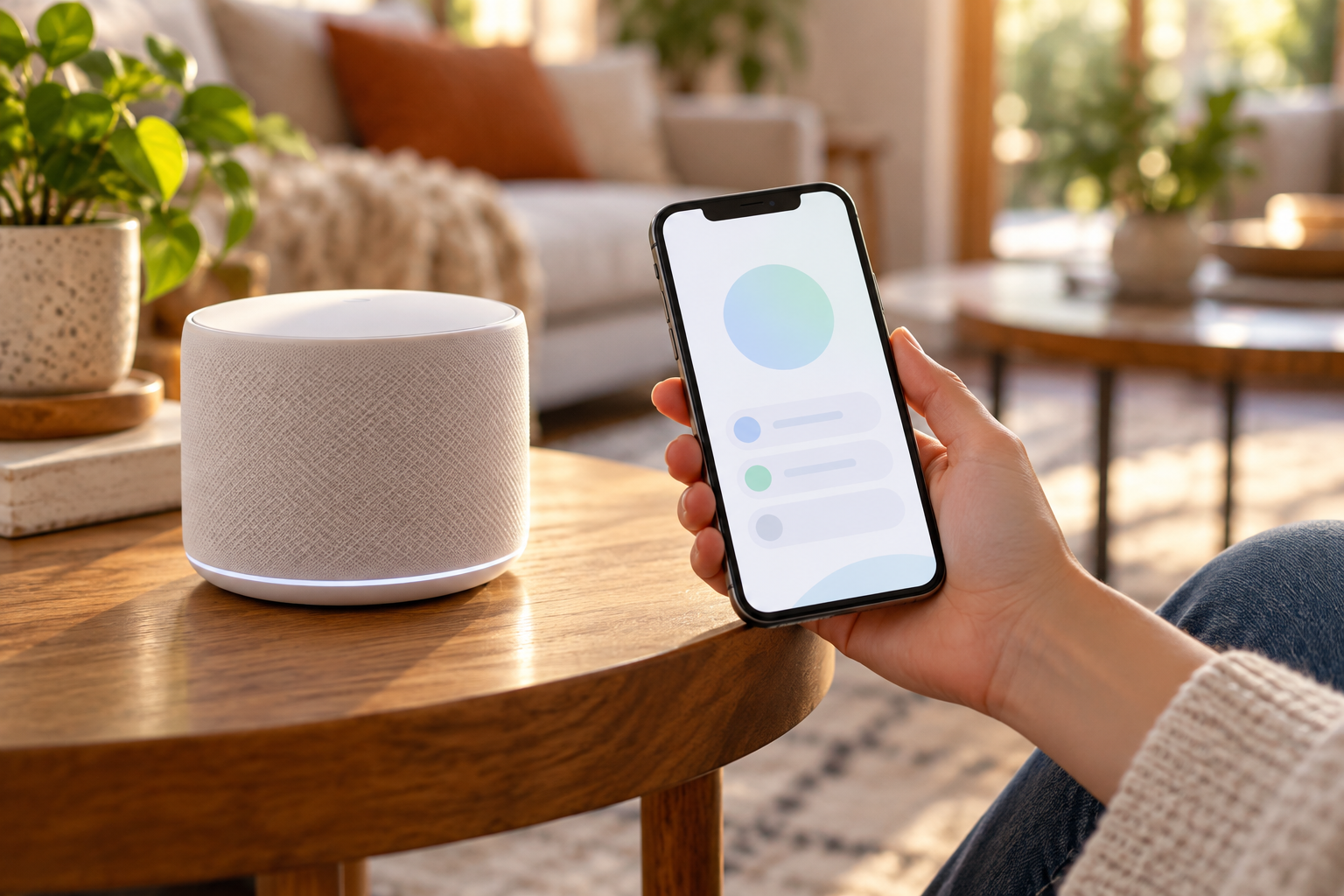
Before you start
- Your modem (or ISP router) is powered on and has a working internet connection
- The Minions Kevin router and its power adapter, plus the supplied Ethernet cable
- A phone or computer for the setup app or web page
- The Wi-Fi name and password of your old router, if you have one — reusing them means your devices reconnect automatically
- Tip: if you want to run your own router behind your ISP router, either set the ISP box to bridge mode or use the Kevin in access-point mode if your firmware offers it
Step-by-step setup
Connect the 2.5GbE WAN port to your modem
Run the Ethernet cable from your modem's LAN port to the WAN port on the Minions router — on Kevin this is the 2.5-gigabit port, marked as WAN. If your internet plan is faster than 1 Gbps, use a cable rated for that speed. Leave the LAN ports for wired devices.
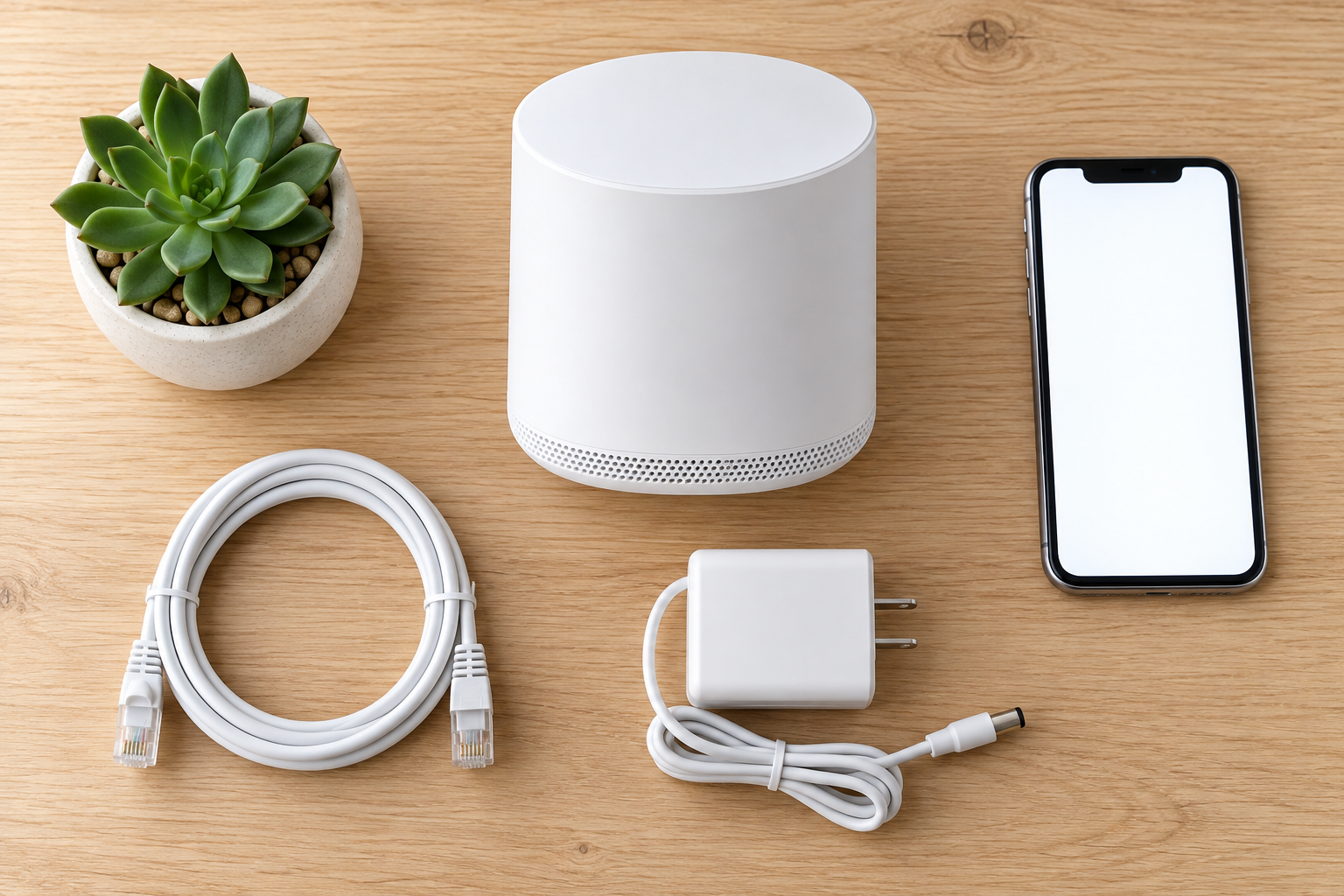
Power on and find the default Wi-Fi network
Connect the power adapter and switch the router on. After a minute or two it broadcasts a default network — the name and password are printed on the label under the unit (or on the card in the box). Join that network from your phone or laptop.
Open the setup app or web page
With your phone on the router's network, open the Minions companion app and it will detect the router, or open the setup address printed on the label in a browser. The first screen offers a quick setup wizard.
Name your network and set a WPA3 password
Choose your SSID and a strong password. Pick WPA3 when offered, with WPA2 as a fallback for older devices. Set the administrator password too — the router's admin login should not stay at the default.
Check the 6GHz band
In the wireless settings, confirm the 6GHz radio is enabled. Many setups publish 6GHz under its own name (a -6G suffix is a common convention) — a separate SSID makes troubleshooting much easier, and you can always merge names later. Remember: a device only sees 6GHz if it is Wi-Fi 6E equipped.
Update firmware and run a speed test
Finish by installing any firmware update the app offers, then run a speed test next to the router and one more time in the far room you care about. That baseline makes it easy to judge later whether you need a mesh unit.
Adding mesh units (2-pack and 3-pack)
Mesh units ship paired in kits, but you still need to add them to your network once:
- Power the extra unit on near the main router first — pairing works best within a few meters
- In the app, choose Add node / Add mesh unit and follow the prompt; the 6GHz band is used as the backhaul between units
- Once it shows as connected, move it to its final spot — a hallway or the far room — and confirm the signal indicator stays healthy
- Placement rule of thumb: one room away from the main router, not in a cabinet, and not next to a microwave or thick concrete wall
A 2-pack covers up to about 4,000 sq ft and a 3-pack up to roughly 6,000 sq ft — see the kit lineup if you are still deciding.
Troubleshooting the common problems
- 6GHz network not visible: your device is probably not Wi-Fi 6E — only 6E hardware can see the 6GHz band. Confirm the band is enabled in settings, then test with a 6E device
- No internet after setup: check that the cable is in the WAN port (not a LAN port) and that your modem is online. Power-cycle the modem, then the router, in that order
- Slow speeds: test wired first to rule out the line itself; make sure you did not cap the Wi-Fi to an old standard in the app, and remember a 100 Mbps cable silently limits a gigabit line
- Mesh unit will not pair: bring it within a few meters of the main unit, hold the reset for a few seconds, and pair again from the app
- Factory reset: hold the reset button on the back for about 10 seconds until the LED reacts, then set the router up again from scratch — handy before selling or moving it
Frequently asked questions
Do I need the app to set up the Minions router?
The app is the fastest path, but most firmware also exposes a web setup page at the address printed on the router label. Either route gets you to the same basic flow: internet check, Wi-Fi name and password, admin password.
How do I enable the 6GHz band?
Open the wireless settings in the app or web page and make sure the 6GHz radio is switched on — it is enabled by default on current firmware. Devices only see 6GHz if they are Wi-Fi 6E capable, so verify with a 6E phone, laptop or headset.
Can I use the Minions router with my existing ISP router?
Yes. Either put the ISP box into bridge mode and let the Kevin handle routing, or keep both and use the Kevin as an access point if the firmware offers AP mode. Bridge mode avoids double NAT, which is friendlier for gaming and VR.
Why can't I see the 6GHz network on my phone?
Because the phone likely does not have a Wi-Fi 6E chip. The 6GHz band is only visible to 6E devices — this is normal and not a fault. Your phone will still connect on 5GHz or 2.4GHz.
How long does setup take?
About 15 minutes for a single unit: a couple of minutes for the router to boot, five minutes in the setup flow, and the rest for a firmware update and a speed test. Adding each mesh unit takes another five minutes or so.
Setting one up this week?
The Minions Kevin ships free in 3–5 days with 30-day returns — start at $102.99.